
A GA4 session isn’t what most marketers think it is. It’s not a visit. It’s not a timer. It’s a collection of events tied together by an ID that GA4 generates — and that ID can outlive a browser tab, survive a campaign switch, and even cross midnight. If your session counts look strange, the definition is probably where the confusion starts.
In this guide, I’ll walk through how a GA4 session actually works under the hood, how it differs from the Universal Analytics session you may remember, and when the default settings quietly distort your numbers. I’ve configured GA4 across dozens of sites in the last two years, and almost every debugging call starts with someone asking why sessions don’t match what they saw in GTM DebugView.
What Is a GA4 Session?
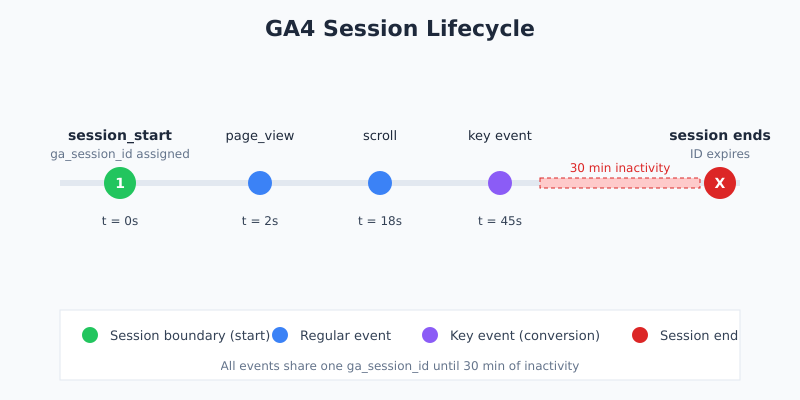
A GA4 session is a group of events that GA4 links together using a single ga_session_id. The session begins when GA4 fires the session_start event — which happens the first time a user interacts with your site or app after 30 minutes of inactivity. Every subsequent event from that user inherits the same ga_session_id until the timeout runs out.
In other words, GA4 doesn’t really track “sessions” as first-class objects the way Universal Analytics did. Instead, it treats everything as an event and uses the session ID as a tag. This sounds like a nerdy detail, but it has real consequences for how you debug and interpret reports.
The Core Mechanics
- Session ID — stored as a user property, reset when a new session starts
- session_start event — fired automatically, marks the session boundary
- Session number — incremented per user; useful for distinguishing first-time vs returning session behavior
- Engagement time — measured separately per session, only while the page is in focus
First, GA4 checks for an active ga_session_id cookie. Second, if none exists or it has expired, a new ID is generated. Third, the session_start event is appended to the event stream. Everything after that — page views, scrolls, clicks, conversions — gets bundled under that ID until the timer runs out.
How GA4 Session Timeout Works
By default, a GA4 session ends after 30 minutes of inactivity. Any event that fires resets the clock. If a user opens your site, reads for 40 minutes without clicking, and then clicks something, GA4 counts that as two sessions — the first one ends silently in the background, the second starts on the next event.
However, 30 minutes is configurable. You can set the timeout anywhere between 5 minutes and 7 hours 55 minutes in the Admin → Data Streams → Configure tag settings. For most sites the default is fine. For documentation hubs, video-heavy sites, or SaaS dashboards where users park tabs for hours, extending it to 60 or 120 minutes often produces more honest numbers.
When to Adjust the Timeout
| Site Type | Recommended Timeout | Why |
|---|---|---|
| E-commerce | 30 min (default) | Purchase decisions happen in short bursts |
| Documentation / Knowledge base | 60-120 min | Users leave tabs open while implementing |
| SaaS dashboard | 120 min or more | Active work sessions often span hours |
| Long-form blog | 30-45 min | Reading spans some inactivity, but not hours |
| Landing page | 30 min (default) | Short, high-intent visits |
Google’s own guidance is documented in the GA4 session help article. Read it once, but remember: the defaults are optimized for average behavior, not your specific site.
Engaged Sessions: The Metric That Replaced Bounce Rate
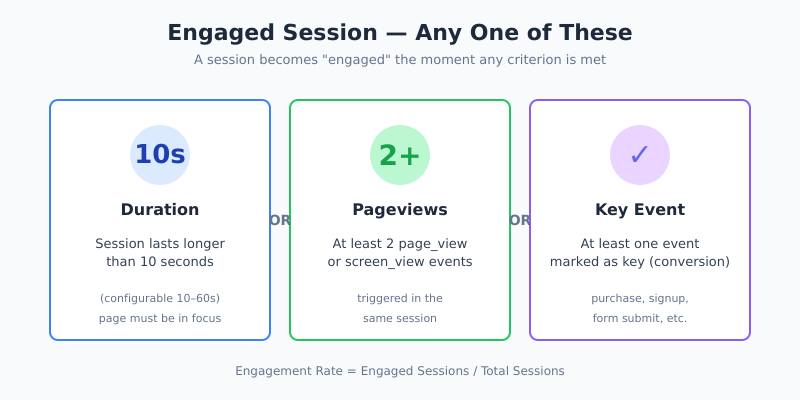
GA4 introduced engaged sessions as the counterweight to the much-maligned bounce rate. An engaged session is any session that meets at least one of three criteria:
- Lasts longer than 10 seconds (this threshold is configurable from 10 to 60 seconds)
- Has at least 2 pageviews or screenviews
- Triggers at least one key event (formerly called a conversion)
In other words, a single-page visit that lasts 11 seconds is engaged. A three-page visit that takes 6 seconds total is engaged. A 45-second read on one page is engaged. The bar is deliberately low, which is why GA4’s engagement rate often looks shockingly high compared to old UA bounce rates. For context on how this changed the bounce metric entirely, see my earlier breakdown of bounce rate and why it matters less than you think.
GA4 Session vs Universal Analytics Session
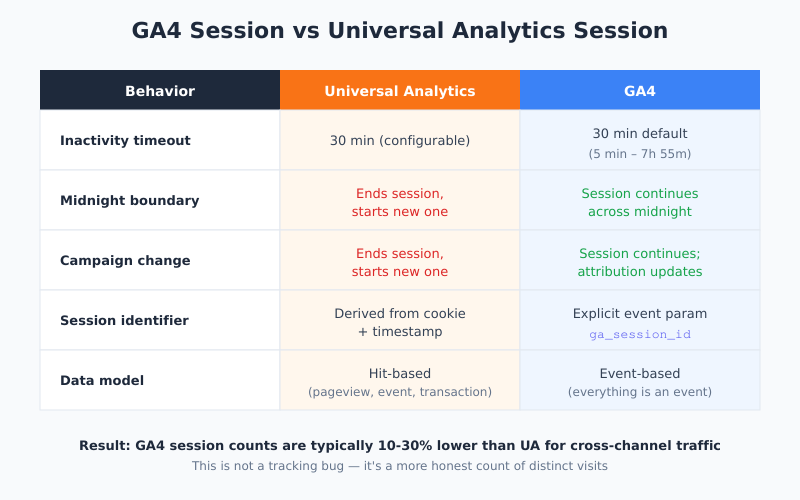
If you migrated from UA, your session numbers almost certainly shifted. The core definitions look similar — 30 minutes of inactivity ends a session in both — but several underlying rules changed in ways that can add or subtract 10-30% of your session count.
Four Rules That Changed
| Behavior | Universal Analytics | GA4 |
|---|---|---|
| Inactivity timeout | 30 min (configurable) | 30 min (configurable 5 min–7h 55m) |
| Midnight boundary | Ends session, starts new one | Session continues across midnight |
| Campaign source change | Ends session, starts new one | Session continues; attribution updates |
| Session identifier | Derived from cookie + timestamp | Explicit ga_session_id event param |
The midnight and campaign-switch rules matter most. For example, if a user clicks a Google Ad at 11:55 PM, browses until 12:10 AM, then clicks an email link at 12:15 AM, UA would count three sessions. GA4 counts one — with attribution recorded for each touchpoint via events, not session splits.
As a result, GA4 session counts are usually lower than UA for sites with cross-channel traffic. That’s not a tracking bug; it’s a more honest count of distinct visits. For deeper context on how attribution interacts with this, see what marketing attribution is and why it’s getting harder.
Sessions vs Users vs Events in GA4
Three concepts anchor every GA4 report, and confusing them produces bad dashboards. Here’s the distinction in plain terms:
- User — a unique visitor, identified by client ID (cookie) or User ID (logged-in). One user can have many sessions.
- Session — a single continuous visit, identified by
ga_session_id. One session contains many events. - Event — any tracked interaction:
page_view,scroll,click, a custom event, a purchase. Everything in GA4 is an event.
The hierarchy is: events → sessions → users. If your report shows 100 users, 150 sessions, and 900 events, that’s roughly 1.5 sessions per user and 6 events per session. Those ratios are worth watching; sudden drops often reveal tracking regressions before any conversion metric moves.
Session Source and Attribution
In GA4, session-level traffic sources are stored in dimensions like session_source, session_medium, and session_campaign. These are set when the session_start event fires, based on the referrer or UTM parameters active at that moment.
However, GA4 also tracks attribution at the event level. A conversion event can be attributed to a different source than the session it lives in — for example, a data-driven model might credit the original acquisition channel rather than the session where the purchase happened. Specifically, this is why GA4’s attribution reports often look different from its acquisition reports — one of several reasons two analytics reports rarely show the same number.
In practice, use session-scoped dimensions for traffic reports and event-scoped (or user-scoped) dimensions for conversion analysis. Mixing them in one report is the fastest way to get impossible-looking numbers. The official Google guidance on attribution in GA4 is worth bookmarking if you’re building dashboards.
Common Problems That Inflate or Deflate Session Counts
Session numbers are sensitive to implementation details. Here are the six issues I see most often in audits:
- Self-referrals. When a payment gateway or external auth redirects back to your site without preserving UTM parameters, GA4 treats it as a new session with
source=your-own-domain. Fix: add your gateway domain to the Referral Exclusion list. - Cross-domain tracking misconfigured. Users crossing between
example.comandshop.example.comget split into two sessions. Fix: configure the linker parameter and add both domains to cross-domain settings. - Short timeout on engagement-heavy sites. A documentation site with 30-minute timeout inflates session counts because users park tabs. Fix: extend timeout to 60-120 minutes.
- Ad blockers. 15-40% of technical audiences block GA4. Your session counts are systematically lower than reality. Fix: acknowledge the gap, don’t try to “fix” it with server-side only.
- Duplicate tag firing. GA4 loaded twice on the same page doubles
page_viewevents but not necessarily sessions — creating odd ratios. Fix: check Tag Assistant, remove duplicate installations. - Consent mode behavior. Users who decline tracking generate modeled sessions via Consent Mode v2, which can either inflate or deflate depending on your configuration. Fix: verify modeled vs observed data in the Admin settings.
When Session Counts Actually Matter
Sessions are useful, but they’re a diagnostic metric, not a business metric. Therefore, I treat them as a sanity check — a way to confirm that traffic is being recorded correctly — rather than a KPI. The metrics that actually drive decisions are:
- Key events (conversions) — what users actually did
- Engaged sessions per user — repeat engagement signal
- Revenue per session — monetization efficiency
- Engagement rate — quality of traffic
For sites where technical SEO is a concern, sessions from organic also need to be interpreted alongside Core Web Vitals performance data — slow pages reduce engaged sessions even when raw session counts hold steady. A supporting reference here is the MeasureSchool walkthrough, which goes deeper into the event-stream visualization.
Practical Checklist: Verifying Your Session Tracking
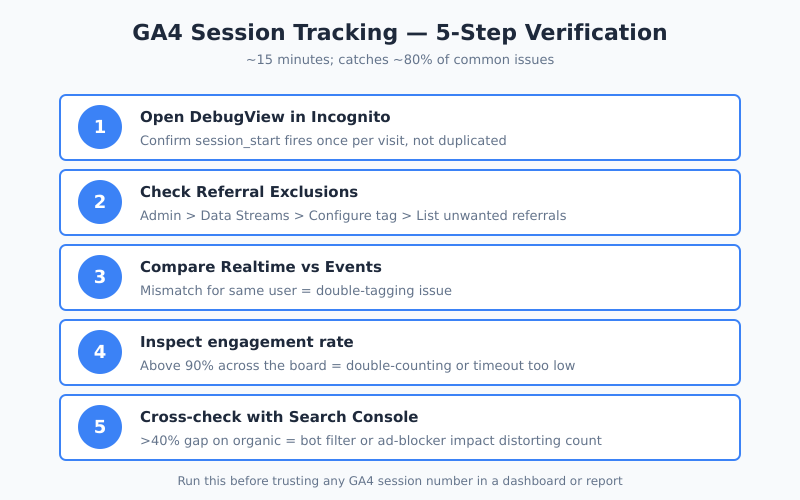
Before trusting any GA4 session number, run this five-step verification. It takes about 15 minutes and catches roughly 80% of common configuration issues.
- Open DebugView while browsing your own site in Incognito. Confirm
session_startfires once per visit. - Check Referral Exclusions in Admin → Data Streams → Configure tag settings → List unwanted referrals. Your payment processors and auth domains should be listed.
- Compare Realtime vs Events reports for the same user. A mismatch indicates a double-tagging issue.
- Inspect the engagement rate — if it’s above 90% across the board, your tracking is probably double-counting or your engagement timeout is too low.
- Cross-check with Search Console for organic sessions. Large discrepancies (>40%) usually mean bot filtering or ad-blocker impact is distorting the count.
Bottom Line
A GA4 session is not a visit, a timer, or a user — it’s a collection of events linked by a ga_session_id that lives until 30 minutes of inactivity. Understanding that distinction changes how you read every GA4 report: session-scoped dimensions describe the container, event-scoped dimensions describe the behavior inside it, and engaged sessions tell you whether that behavior was meaningful.
Ultimately, stop chasing raw session counts. Configure your timeouts for how users actually behave on your site, exclude your own payment and auth domains from referrals, and focus on engaged sessions per user as the quality signal. If those three things are right, your session numbers will finally match the story your traffic is actually telling.