GA4 changed the terminology around conversions and it confused a lot of teams — myself included, the first time I opened a post-migration dashboard and couldn’t find the “Conversions” column. What used to be called a conversion in GA4 is now a key event. And what’s now called a conversion lives in Google Ads, not GA4. The distinction sounds pedantic, but getting it wrong means your ad platform optimizes for the wrong action, your reports surface the wrong metric, and your marketing team argues about numbers that should match. Mismatched figures across tools are so common that I wrote a separate guide on why your analytics numbers never match and which one to trust.
In this guide, I’ll clarify what GA4 events, key events, and conversions each represent, how to set them up correctly, and which configuration mistakes I see most often in audits. Everything is an event in GA4 — the question is which events matter enough to flag.
Everything Is an Event in GA4
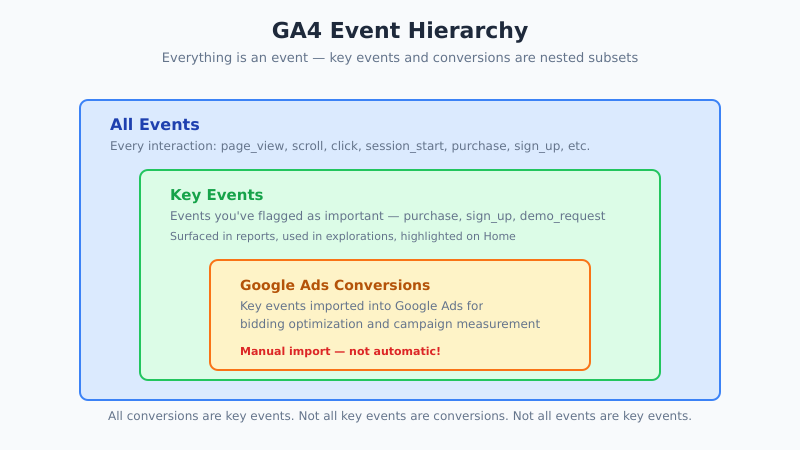
Before getting to key events and conversions, the foundational idea: GA4 is fully event-based. Every page view, every scroll, every click, every form submit, every session start — all of these are events. The platform doesn’t have the “pageview vs event” split that Universal Analytics had.
An event in GA4 is a single recorded interaction with a name (like page_view or purchase) and up to 25 parameters describing it (URL, product ID, value, etc.). GA4 ships with about 20 automatic events that fire without any setup, plus enhanced-measurement events that activate with a toggle.
The Four Event Types
- Automatic events:
first_visit,session_start,user_engagement,page_view. Fire with no setup. - Enhanced measurement events:
scroll,click(outbound),file_download,video_start,form_start,form_submit. Toggle in Data Stream settings. - Recommended events: Predefined event names with specific parameters —
purchase,sign_up,login,share. You implement these manually but use Google’s naming. - Custom events: Anything else specific to your business. You name them yourself.
The reason to use recommended event names where possible: Google’s automated insights, audience suggestions, and AI features all recognize these names. Custom events work fine, but you miss the out-of-the-box intelligence. For context on how session boundaries interact with events, see what a GA4 session actually is.
Key Events: What They Are and How They Replaced Conversions
In March 2024, Google renamed what GA4 called “conversions” to key events. The mechanics didn’t change — you still mark an event as important via the same toggle — but the terminology now separates Analytics-side importance from Ads-side optimization targets.
A key event is any GA4 event you’ve flagged as important to your business. Purchases, sign-ups, lead form submits, trial activations, demo requests. Flagging an event as a key event makes GA4 highlight it in reports, exposes it in the “Key events” card on the home screen, and makes it available as a metric in explorations.
What Changed in Practice
| Pre-March 2024 | Post-March 2024 |
|---|---|
| Event → “Mark as conversion” | Event → “Mark as key event” |
| Reports showed “Conversions” | Reports show “Key events” |
| “Conversions” = GA4 + Google Ads term | “Conversions” = Google Ads only |
| Same number appeared in both tools | Numbers still align but terminology split |
Why Google did this: discrepancies between GA4 “conversions” and Google Ads “conversions” kept confusing advertisers. Splitting the vocabulary made it clearer which number lives where. Google’s official explanation is documented here.
GA4 Conversions vs Google Ads Conversions
Here’s the distinction that trips up most marketers. Under the new naming:
- GA4 key events = important actions tracked in GA4 for analytics and reporting
- Google Ads conversions = actions used to optimize ad bidding and campaign performance
They’re related but not identical. A key event in GA4 becomes a Google Ads conversion only when you explicitly import it into Ads. You can have 20 key events in GA4 and only 3 of them active as conversions in Ads — which is often the right setup, since Ads should only optimize against the few actions that actually matter for bidding.
How to Set Up Key Events Correctly
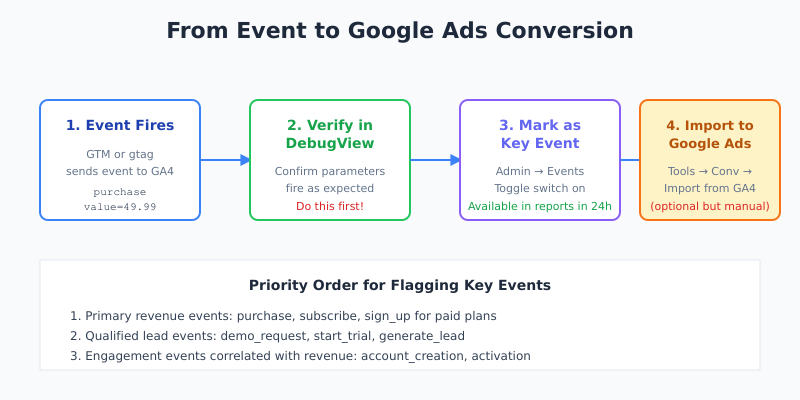
The process is trivial; the discipline around which events to flag is what matters. Here’s the step-by-step:
- Implement the event via GTM, gtag, or a data layer push. Use recommended event names where they apply.
- Verify it fires in DebugView before flagging as a key event. Wrong parameters at this stage propagate everywhere.
- Navigate to Admin → Events (under Data display).
- Toggle “Mark as key event” on the event row. It becomes available in reports within 24 hours.
- Import to Google Ads (optional) via Google Ads → Tools → Conversions → Import from GA4.
Specifically, flag events in this priority order: primary revenue events (purchase, subscription), qualified lead events (demo request, trial start), engagement events that correlate with revenue (account creation, activation milestone), and finally micro-conversions (email signup, content download) if they inform decisions.
What to Flag as a Key Event
| Business Type | Primary Key Events | Secondary Key Events |
|---|---|---|
| E-commerce | purchase, add_to_cart | begin_checkout, sign_up, newsletter_signup |
| SaaS | sign_up, start_trial, subscribe | demo_request, feature_activation |
| Lead-gen | generate_lead, form_submit | contact_us, schedule_call |
| Content / Media | newsletter_signup, video_complete | share, time_on_page_threshold |
| Marketplace | listing_contact, purchase | search_result_click, seller_signup |
Common Key Event Setup Mistakes
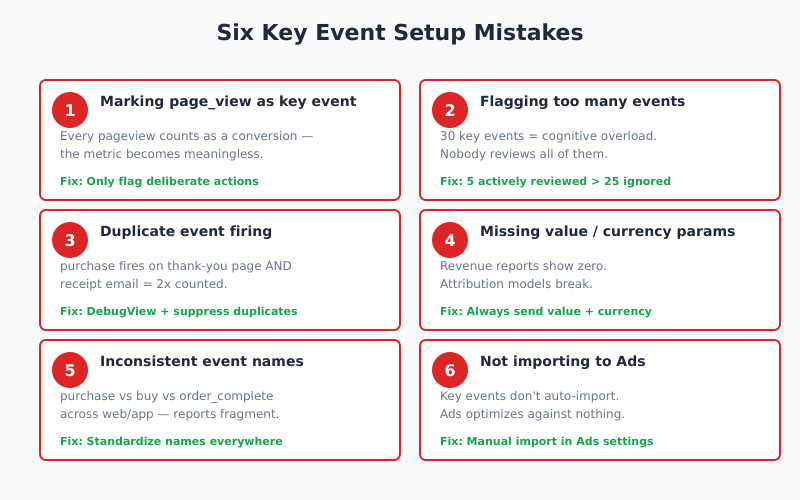
Six patterns I see repeatedly in audits. Each one produces inflated or deflated conversion numbers that break reporting.
- Marking page_view as a key event. Every pageview counts as a conversion, which makes the metric meaningless. Only mark events that represent deliberate actions.
- Flagging too many events. GA4 allows 30 key events per property, but five actively reviewed events produce better decisions than 25 that nobody reads.
- Duplicate event firing. If
purchasefires on both the thank-you page and the receipt email confirmation page, you count each purchase twice. Check with DebugView and suppress duplicates. - Missing value and currency parameters on purchase. Without these, GA4’s revenue reports show zero and attribution models can’t weight properly.
- Using different event names for the same action.
purchasein web,buyin app,order_completein some third-party tool — none of them unify in reports. Standardize names across sources. - Not importing to Ads when needed. Key events in GA4 don’t automatically become Ads conversions. If you want Ads to optimize against them, the import step is manual.
For better quality of optimization itself, see how to run A/B tests without fooling yourself — most A/B tests use key events as their primary metric, and dirty event data produces invalid test results.
Conversion Counting Methods
GA4 offers two counting methods for key events: “Once per event” and “Once per session.” The difference matters more than it looks.
- Once per event (default): Every time the event fires, it counts. Best for purchases, where each transaction matters independently.
- Once per session: Only the first occurrence per session counts. Best for lead forms — a user who submits a form three times in frustration is still one lead.
In my experience, most teams leave everything on default and end up with inflated numbers on multi-submit events. Review each key event’s counting method when you flag it. This takes two minutes and saves weeks of confused reporting later.
Event Parameters: The Detail That Matters
Event parameters are where GA4 analysis actually happens. A purchase event without parameters is just a count. With value, currency, transaction_id, items[], and custom dimensions for product category or campaign, it becomes analyzable.
Critical parameters for the most common events:
| Event | Essential Parameters |
|---|---|
purchase |
value, currency, transaction_id, items, tax, shipping |
sign_up |
method (email, google, linkedin) |
generate_lead |
value, currency, lead_type |
begin_checkout |
value, currency, items |
search |
search_term |
view_item |
value, currency, items |
However, you also need to register parameters as custom dimensions in GA4 Admin → Custom definitions before they become queryable in reports. Sending a parameter without registering it is a common source of “why can’t I see this in GA4” frustration. The Google recommended events reference lists parameter expectations for every standard event. The same naming discipline applies on the structured data side: the Product, Order, and BuyAction entities your e-commerce templates emit need consistent @type and productID values, and a implementation checklist keeps the schema and analytics naming aligned across templates.
Reporting on Key Events
Once key events are flagged correctly, several reports become useful:
- Home → Key events card — quick daily snapshot
- Reports → Engagement → Events — per-event trends with filter by key event flag
- Reports → Engagement → Conversions (still labeled this in some UIs) — key events by dimension
- Explore → Funnel exploration — multi-step funnels where key events are the terminal steps
- Advertising → Attribution — credit assignment across channels for each key event
For a broader view of how attribution interacts with key events, see marketing attribution and why it’s getting harder.
Bottom Line
GA4 events are the building blocks of all tracking in the platform; key events are the subset you’ve flagged as important; conversions in Google Ads are the subset you want Ads to optimize against. The three-layer hierarchy sounds complicated but actually produces cleaner reports and less cross-platform confusion than the old shared “conversion” vocabulary.
Therefore, audit your property quarterly: which events are flagged as key events, whether any are double-counting, whether the counting method matches the event’s nature, and whether the key events you actually review match the ones Google Ads is optimizing against. A tight key-event setup is the difference between dashboards that drive decisions and dashboards that drive arguments.